Digital Art Tools: A Plain-English Guide
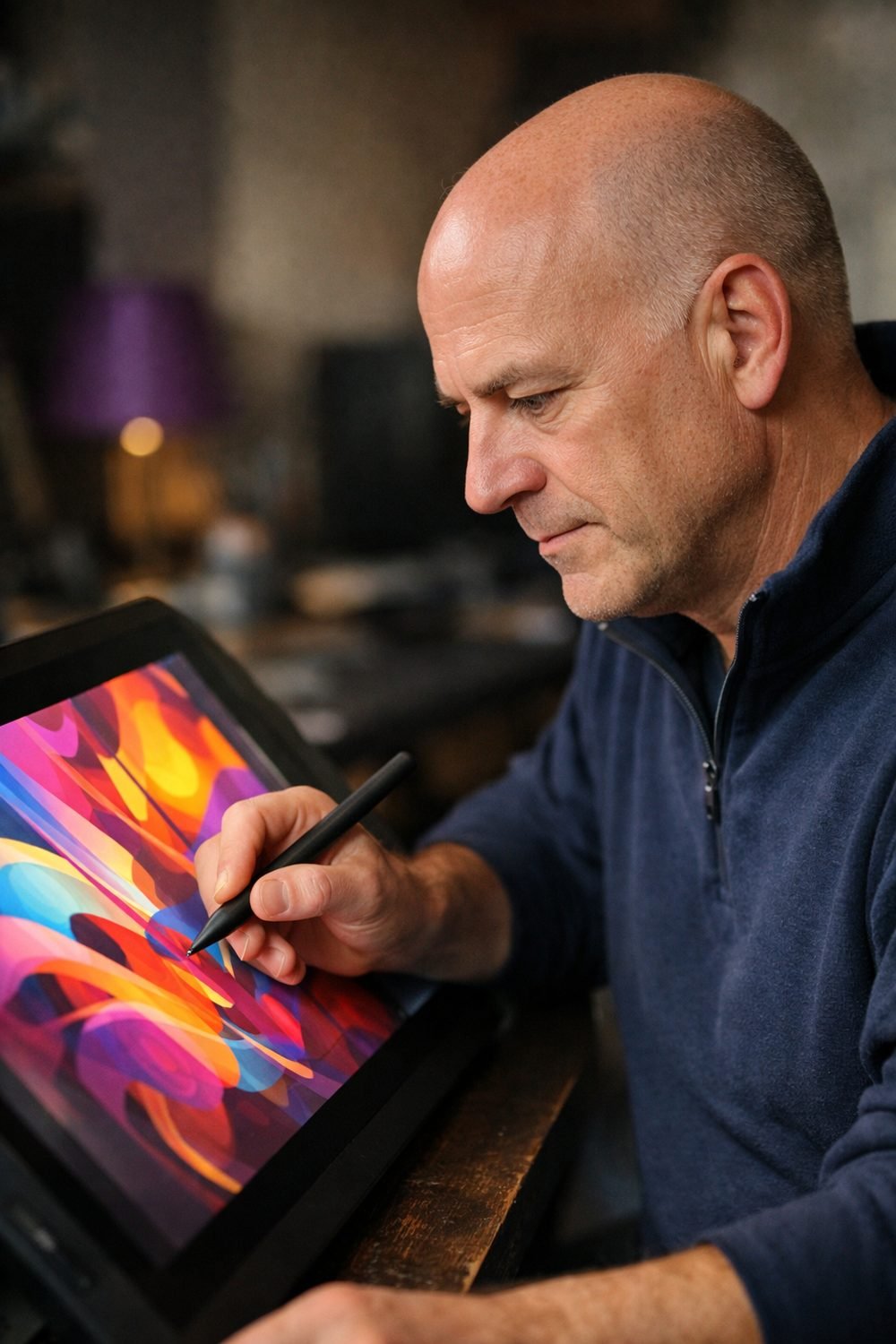
Digital art tools range from a simple pen tablet that plugs into your laptop to full software suites with thousands of brushes. A common mistake when starting out is buying the wrong thing twice. One tablet was too small. The other came with a cable that didn't fit my computer. This guide aims to save you that hassle.
This guide covers the main pieces you'll run into: pen tablets, display tablets, standalone tablets, software, pen pressure, compatibility and how to actually learn. This guide covers what is worth buying, what you can skip, and where people commonly waste money.
Short on time? Our top picks: Wacom Intuos, XPPen, Huion and Apple iPad with Apple Pencil. See all picks
Quick summary
- A pen tablet (no screen) is the cheapest way to start. It takes a few days to get used to looking at the monitor while your hand draws on the desk.
- A display tablet lets you draw right on the screen. It feels more natural, but it costs more and takes up more desk space.
- A standalone tablet (like a regular tablet with a stylus) works anywhere, with no computer needed.
- Free software is good enough for most beginners. You can pay later if you outgrow it.
- Pen pressure numbers matter less than marketing suggests. How the pen feels matters more.
- Check compatibility with your computer and operating system before you buy any digital art tools.
- Pick one tutorial series and stick with it for a few weeks instead of hopping around.
What "digital art tools" actually means
It sounds like one thing, but it's really two: hardware and software. The hardware is what you hold and draw on. The software is the program where your lines show up.
You need both. A great tablet with clunky software feels bad, and great software with a mouse feels worse. Many people try drawing with a mouse for a week or so before giving up, and a basic tablet makes things much easier. Every circle looked like a potato.
The basic setup
At minimum, most people need:
- Something to draw on (a tablet of some kind)
- A pen or stylus that works with it
- A drawing program
- A computer, unless you go with a standalone tablet
That's it. Everything else, like extra pen nibs, a glove or a special stand, is nice to have but not where I'd start.
Pen tablets: the no-screen digital drawing tablet option
A pen tablet, such as the Wacom Intuos, is a flat digital drawing pad that connects to your computer. You draw on the pad, and the line appears on your monitor. There's no screen on the tablet itself.
This is a good place to start, and it's still the smartest first buy for a lot of people. They're usually the lowest-cost option, they're light, and they don't need much desk space.
The learning curve
Here's the honest part. The first few days feel strange. Your hand is down on the desk, but your eyes are up on the monitor. Early sketches can look like they were drawn on a bumpy bus.
It gets better quickly. For me it clicked after about a week of short daily practice. Some people adjust in a day. Some never love it and switch to a screen tablet later, and that's fine too.
Size: bigger isn't always better
Small pen tablets can feel cramped, especially if you draw with big arm movements. Very large ones can be tiring because you have to move your whole arm a lot. A medium size is a safe middle ground for most desks. If you mostly draw small details from the wrist, a smaller one is fine.
Display tablets: a digital drawing tablet with a screen
A display tablet has a screen built in. You plug it into your computer, and it acts like a second monitor you can draw on. You see the line right under your pen tip, just like paper.
For a lot of people, this feels much more natural. When I finally tried one, I noticed my linework got cleaner almost right away, simply because my eyes and hand were in the same place.
The trade-offs
- Cost: They usually cost noticeably more than pen tablets of a similar size.
- Space: You need room on your desk, and often a stand to tilt it.
- Cables: Some need several cables or a specific port. Check this carefully.
- Your hand blocks the view: On paper you get used to it, but it still surprises some people.
Pen tablet vs display tablet: a quick comparison
If you're on a tight budget, or you're not sure you'll stick with digital art, start with a pen tablet. If you've drawn on paper for years and hate the idea of looking away from your hand, a display tablet might be worth the extra cost.
Something people don't mention much: posture. With a pen tablet, you look straight ahead at your monitor. With a display tablet laid flat, you can end up hunched over. A stand helps a lot.
Standalone art tablet options with a stylus
This is the "draw anywhere" option: a regular tablet that works with a stylus, plus a drawing app, so it doubles as a digital art tablet (an Apple iPad with a compatible stylus is one example). No computer needed. You can sketch on the couch, at a café or in bed (I've done all three).
The upside is freedom. The downside is that you're tied to the apps available on that device, and the stylus is often sold separately. Storage can fill up fast if you work on big files.
Who this suits
If you don't have a decent computer, or you want to sketch on the go, this is a strong choice. If you already have a good desktop setup and mostly draw at home, a pen or display tablet might give you more for your money.
Check the seller's page for which stylus works with which model. They are not all interchangeable, and that's an easy mistake to make.
Free digital art software or paid: which to pick
Software is where a lot of beginners overthink things. It's easy to spend a whole weekend reading reviews before drawing a single line. Looking back, I should've just picked a free program and started.
Free programs
There are good free digital art software options out there, some of them open-source, like Krita. Many have layers, a decent brush set and pressure support. For learning the basics, they're often more than enough.
The catch is that some free programs have fewer tutorials, or the menus can feel a little clunky. That's a small price for "costs nothing."
Paid programs
The best digital art software, if you decide to pay, comes in two main styles: a one-time purchase or a subscription. One-time purchases feel nicer to me because I'm not paying monthly for something I might use twice. Subscriptions can make sense if you need specific pro features or work with others who use the same program.
Prices and terms change, so check the current details on the seller's page before you commit.
What actually matters in software
- Layers (you'll use these constantly)
- Brushes that respond to pen pressure
- An undo history that goes back a good way
- A canvas rotate tool, which is handy and often overlooked
- Export options for the file types you need
What's overrated? Huge brush packs. It's easy to download hundreds and use only a handful. A basic pencil, an ink brush and a soft airbrush covered most of what I did for months.
Pen pressure and how the pen feels
Pen pressure is what lets your lines go thin when you press lightly and thick when you press harder. It's a big part of what makes digital drawing feel like real drawing.
Those pressure level numbers
Tablets often list "pressure levels" as a big number. Higher sounds better, and the marketing leans on that. Past a certain point, many people can't tell the difference. Most hands aren't that precise, so don't expect yours to be.
What I notice more is:
- Activation force: how lightly you can press before a line appears. Light sketchers care about this a lot.
- Tilt support: handy if you like shading with the side of a pencil-style brush.
- Battery or no battery: some pens need charging, some don't. I prefer no charging, because I always forget.
- Grip and weight: a pen that feels too thin can make your hand cramp.
Tweak the pressure curve
Most tablet drivers and drawing programs let you adjust the pressure curve. If your lines feel too heavy or too faint, change this before you blame the tablet. Before returning a tablet, check the settings, since a problem can often be fixed in a couple of minutes.
By the way, if you like making things by hand too, our email list comes with free Junk Journal Starter Pages (tags, a pocket and a cover), and you can grab them in the sign-up box on this page.
Compatibility with your computer
This is the boring section, and it's also the one that would've saved me a return.
Things to check before you buy
- Operating system: Make sure the tablet's drivers support your system and version.
- Ports: Look at what plugs your computer actually has. Display tablets especially may need a particular video connection, or an adapter.
- Software support: Check that your chosen drawing program works well with your tablet brand.
- Computer power: Large canvases with many layers can slow down older computers. If your laptop already struggles with a few browser tabs, keep your canvas sizes modest at first.
The seller's page and the manufacturer's support page usually list supported systems. Read them. It takes five minutes.
Drivers
Install the tablet's own driver rather than relying on whatever your computer finds automatically. Pressure often won't work properly without it. If things act weird, uninstalling old tablet drivers from a previous device can fix it. That was my second mistake.
Organizing your gear and your work
Once you have a few pens, spare nibs, maybe a second tablet and dozens of files, it gets messy. It's easy to lose track of which nib type you bought and end up ordering the wrong ones.
Keeping a simple log helps. Write down what you own, when you bought it, any settings you like and notes on what worked. If you also do photo work or shoot reference photos for your art, the Shot Log and Gear Journal below this post is built for exactly that kind of record-keeping. And if you photograph your traditional sketches before working on them digitally, the Studio Light Tracker Spreadsheet with Calculators (also below this post) can help you keep your lighting setups consistent.
Neither is required, of course. A plain notebook works too. The point is having some record.
Learning: how to actually get better
Buying tools is the fun part. Using them is the part that counts. Some people with expensive setups barely draw, while others with old tablets draw every day and improve fast.
Pick one path
There are endless free tutorials online. The trap is hopping between them. It's tempting to watch ten minutes of one video, get bored and switch to another. After a month I'd "learned" a lot and drawn very little.
What worked better: choosing one beginner series and finishing it. Even if it wasn't perfect, finishing something gave me a solid base.
Learn the software basics first
Before you draw anything fancy, spend one evening learning:
- How layers work
- Keyboard shortcuts for undo, brush size and eraser
- How to zoom, rotate and flip the canvas
- How to save and export
Flipping the canvas is a small trick that shows you mistakes you'd otherwise miss. Faces that looked fine suddenly look lopsided. Humbling, but useful.
Short, regular practice
Twenty minutes most days did more for me than one long session on Sunday. Draw simple things: cups, your shoe, your hand. Don't post everything. Some of it is just practice, and that's the whole point.
Common mistakes
Most of these are common mistakes. Some more than once.
- Buying the most expensive tablet first. If you're not sure you'll stick with it, start cheaper. You'll also learn what you actually want.
- Ignoring compatibility. Check ports, operating system and drivers before buying.
- Chasing pressure level numbers. The feel of the pen and the pressure curve matter more.
- Paying for software too early. Try free options for a few weeks first.
- Collecting brushes instead of drawing. A handful is plenty.
- Working on one layer. One wrong move and you can't fix the sketch without wrecking the colors.
- Forgetting to save. Programs crash. Save often, and keep backups of work you care about.
- Bad posture. Hunching over a display tablet for hours adds up. Use a stand, take breaks and stretch your hand.
- Giving up in week one. The pen tablet weirdness fades. Give it some time.
Our top picks for getting started
These are well-known options that suit different budgets and styles. Pick the one that matches how and where you like to draw.
Wacom Intuos
A familiar pen tablet line that suits beginners who want a no-screen starting point for a laptop or desktop. Check which sizes are offered and that your computer's ports and operating system are supported.
XPPen
A brand that makes both pen tablets and display tablets, so it suits people who want to compare both styles from one maker. Check the exact model's cable needs and driver support before ordering.
Huion
Another brand with pen and display tablets that suits people shopping on a tighter budget. Check that the pen is included and which software it works with.
Apple iPad with Apple Pencil
A standalone option for people who want to draw on the couch or on the go with no computer. Check which Pencil works with which iPad model, since they are not all interchangeable.
Procreate
A popular drawing app for iPad that suits people who want a focused, touch-friendly painting and sketching tool. It only runs on Apple tablets, so check that your device is supported.
Krita
A free, open-source painting program that suits beginners who want layers and brushes without paying. Check that your tablet's driver is installed so pen pressure works properly.
Clip Studio Paint
A paid program that suits people interested in illustration, comics and manga. Check whether you prefer its purchase or subscription options for your device.
Adobe Fresco
A drawing and painting app that suits people already comfortable with Adobe's tools. Check which devices it supports and how its plans work before you commit.
Check current plans and prices on each brand's own site before you buy.
FAQ
Do I need a display tablet to make good digital art?
No. Lots of artists use simple pen tablets for years and make great work. A display tablet can feel more natural, but it's a comfort choice, not a requirement.
Is free drawing software good enough for beginners?
For most people, yes. Free programs usually cover layers, pressure-sensitive brushes and exporting. Try one for a while, and only pay for something if you hit a real limit.
Can I use any stylus with any tablet?
Usually not. Pens are often made for specific tablets or brands, and many won't work with others. Check the seller's page for the exact compatible models before buying a spare.
My pen pressure isn't working. What should I check?
First, make sure you installed the tablet's official driver and removed any old drivers. Then check the pressure settings in both the driver and your drawing program. If it still doesn't work, the manufacturer's support page is the best next stop.
Where to go from here
If you take one thing from this guide, let it be this: start simple, check compatibility and draw a little every day. The tool matters far less than the practice. Your next step is easy. Grab the free Junk Journal Starter Pages from the sign-up box on this page, then take a look at the Shot Log and Gear Journal and the Studio Light Tracker Spreadsheet below this post if you'd like a tidy way to keep track of your gear and setups.
Printables and tools that can help
Studio Light Tracker Spreadsheet with Calculators
A spreadsheet with a summary page and a calculator sheet. Works in Excel and Google...
See detailsShot Log and Gear Journal
A printable journal to record ideas, dates and notes through the...
See details